
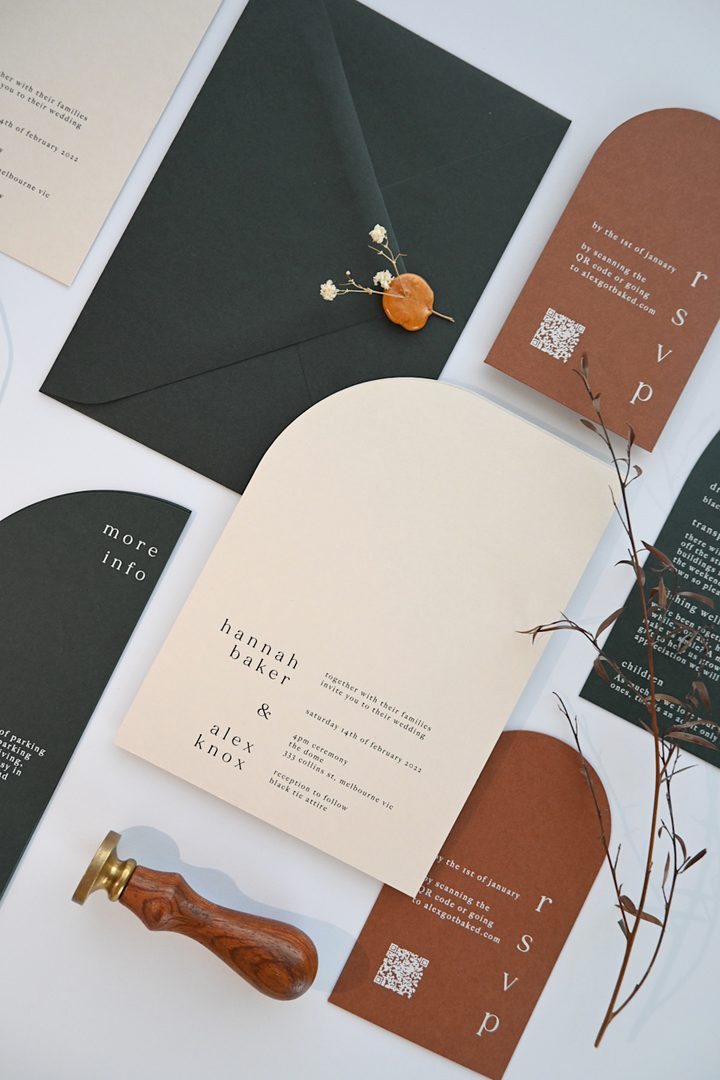

- What it is: A printed QR code on your invitation or RSVP card that guests scan to reach your wedding website, RSVP form, or registry
- Minimum size: 0.8 x 0.8 inches (20mm x 20mm) on a card; larger for place cards or signage
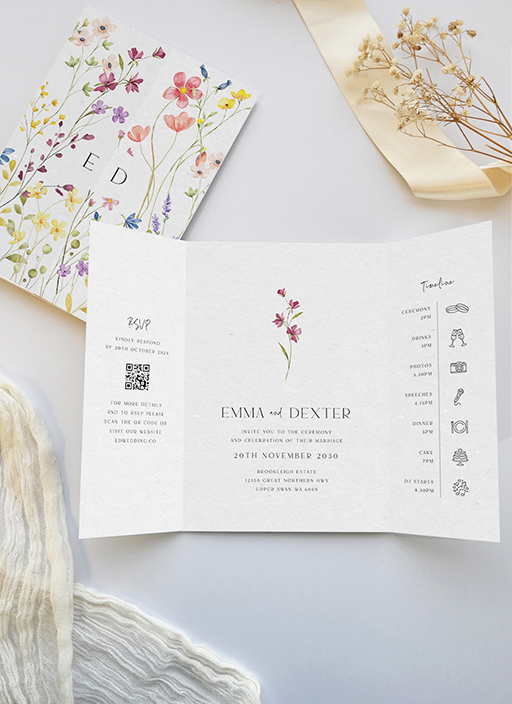
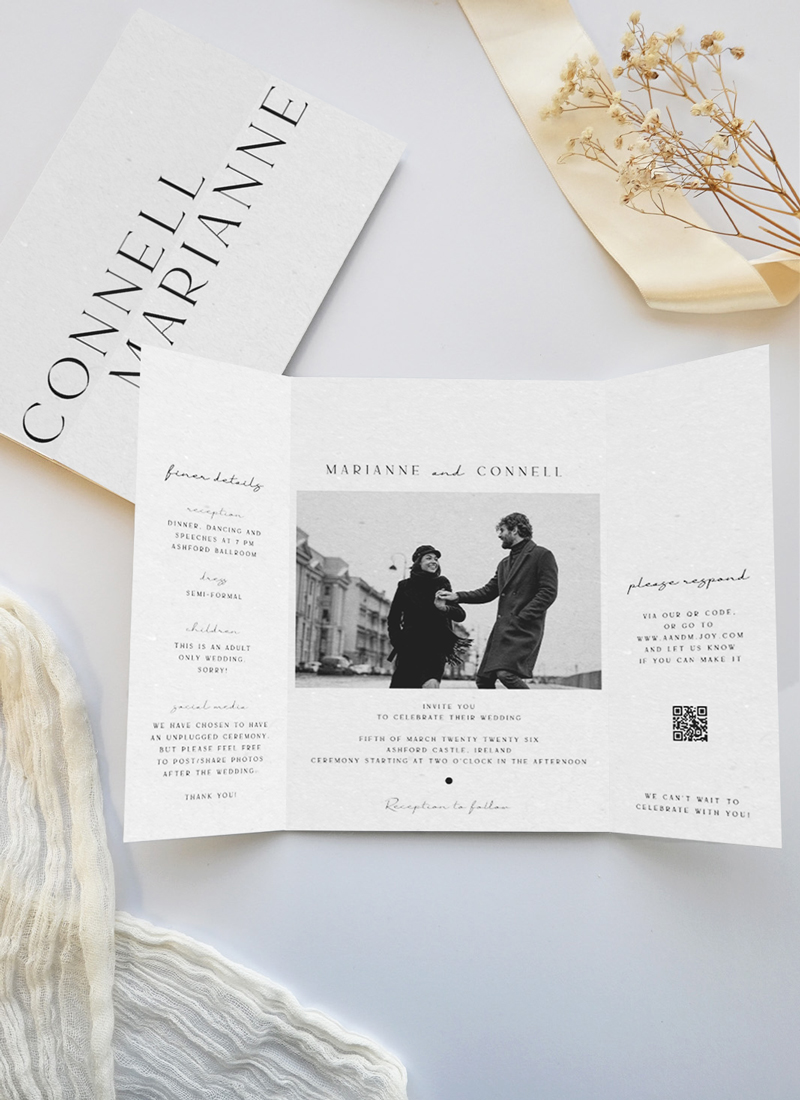
- Best placement: Back of the invitation or a dedicated RSVP card. Keeps the front design uncluttered
- Contrast rule: Dark code on a light background; avoid placing over patterned areas
- Test before print: Scan the code on three different phones from arm’s length before approving your proof
- Still include a backup: Add your wedding website URL in plain text below the code for guests who prefer not to scan
More couples are adding QR codes to their printed wedding stationery than ever before: 49% in 2024, up from just 20% in 2022. But “adding a QR code” covers a huge range of decisions: what the code links to, how to generate it, where it sits on the card, and what your guests actually experience when they scan it. Get these right and you’ll have a smooth, modern RSVP system. Get them wrong and you’ll be chasing responses by phone three days before the caterer’s cutoff.
This guide covers every decision, from choosing your QR code destination to sizing, placement, design, testing, and the etiquette of going QR-only vs. keeping a traditional reply card.
What Is a QR Code Wedding Invitation and How Does It Work?
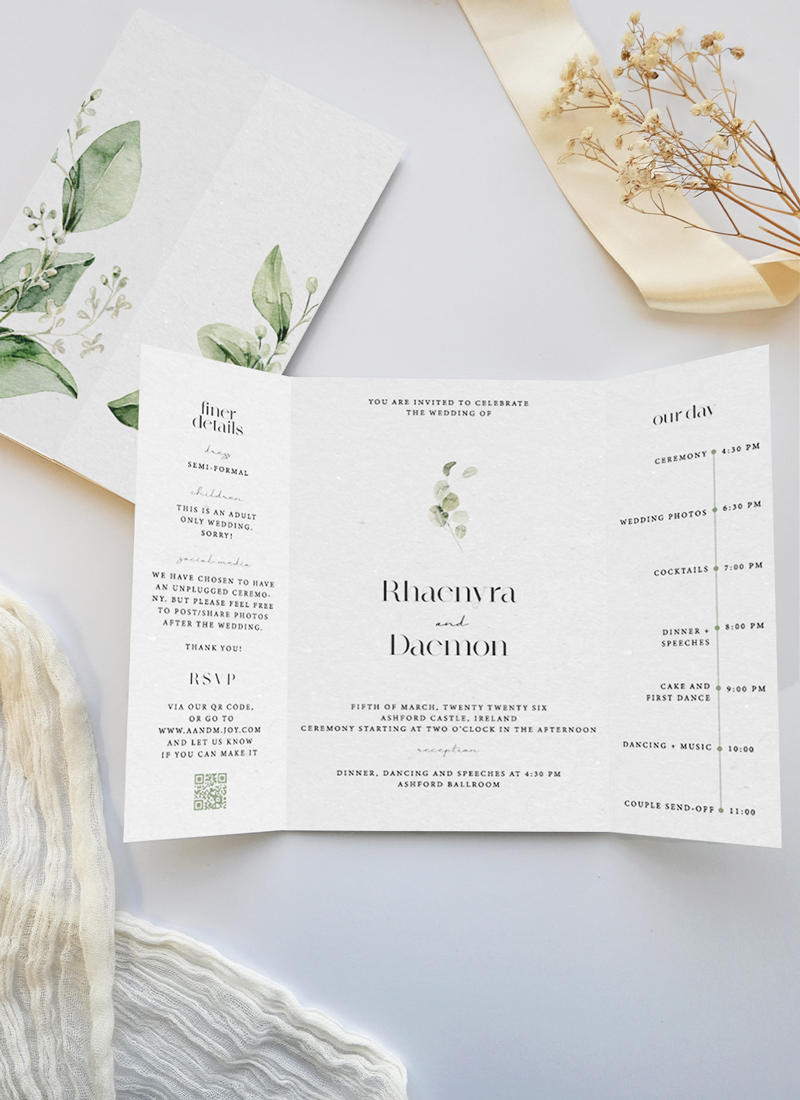
A QR code (Quick Response code) is a square, scannable barcode that a smartphone camera reads instantly. No app is required for most modern phones. When a guest points their camera at the code printed on your invitation, their phone opens a link directly in their browser.
On a wedding invitation, that link usually goes to your wedding website, your RSVP form, your registry, or some combination. The guest scans, lands on the page, and completes whatever action you’ve set up. All without hunting for a pen, stamping an envelope, or searching for a mailbox.
The print side is straightforward: your QR code is generated as a digital file, placed in your invitation design the same way any graphic element is, and printed onto the card. Because it’s just ink on paper, it works with every print method: digital print, letterpress, flat foil, metallic, or white ink. The QR pattern itself needs to remain dark and high-contrast, so most couples print the code in black or a very dark color even if the rest of the design uses color.
What makes the difference between a code that works and one that frustrates guests:
- Size: too small and phone cameras struggle to resolve the pattern
- Contrast: low-contrast colors make the code harder to detect
- Quiet zone: the blank border around the code that helps cameras isolate it
- URL stability: the destination link must not change after printing
We’ll cover all four in depth below.

What to Link Your Wedding Invitation QR Code To
The most common destinations, and which one to choose:
| Destination | Best For | Consideration |
|---|---|---|
| Wedding website RSVP page | Most couples (centralizes everything) | Make sure RSVP tab is visible on mobile without scrolling |
| Dedicated RSVP form (Google Forms, RSVPify, etc.) | Couples who want meal-choice or allergy tracking | Free tools; branded alternatives available |
| Wedding website homepage | When RSVP isn’t open yet (save the dates) | Add RSVP link prominently before invitations go out |
| Registry page | Thank-you cards, bridal shower invites | Not ideal for invitations. Guests expect RSVP info first |
| Venue directions (Google Maps) | Secondary QR code on info/details card | Maps links can change; test within a week of the event |
The safest choice for the main invitation QR code is your wedding website’s RSVP page. It handles changes gracefully: if your venue shifts or you update menu options, you update the website, not the printed card. The QR code itself never needs to change.
If you’re using a dynamic QR code (one that routes through a shortening service like Rebrandly or Bitly), you can update the destination URL any time without reprinting. This adds flexibility but introduces a dependency on a third-party service staying active. For static QR codes (which encode the URL directly), the destination is permanent, so point them to a URL you own and control.
How to Generate a QR Code for Your Wedding Invitation
You have three main routes:
Option 1: Use Your Wedding Website Platform’s Built-In QR Code
Most wedding website platforms (Joy, Zola, Squarespace Weddings, etc.) have QR code generators built into their RSVP setup. The advantage: the code links directly to your RSVP form on their platform, and they manage the redirect. The downside: if you move your wedding website, the code may break.
Option 2: Use a Free QR Code Generator
Sites like QR Code Generator, Wedibox, and QR Code Developer let you paste your URL and download a high-resolution file. For printing:
- Download as SVG (vector format): scales to any size without quality loss
- If SVG isn’t available, use PNG at a minimum of 1000 x 1000 pixels
- Never screenshot a QR code. The resolution is too low for print
Option 3: Ask Your Stationery Designer to Generate It
When you order QR code wedding invitations through Paperlust’s QR invitation collection, you supply the URL and the design team integrates the QR code into your layout. This is the cleanest approach: the designer ensures the quiet zone, contrast, and size are all correct before the file goes to print.
Dynamic vs. static QR codes: For most couples, a static code is fine. Generate it, point it at your wedding website’s RSVP page, and test it. Dynamic codes are useful if you genuinely expect the destination to change. For example, if the RSVP form isn’t live yet when you’re placing your print order.
QR Code Design Rules for Wedding Invitations (Size, Contrast, Placement)
Size
The minimum printable size for a QR code on a card is 0.8 x 0.8 inches (20mm x 20mm). That’s the smallest size a modern smartphone camera can reliably read when held at arm’s length.
In practice:
- On a standard 5 x 7 inch invitation: 0.8–1 inch works well on the back, or on a separate RSVP card
- On a smaller RSVP card (4 x 5.5 inches): 0.8 inch minimum, 1 inch recommended
- On a place card or menu: 0.8–1 inch with a short CTA text label
- On signage or welcome boards: 2 inches or larger so guests can scan from a distance
Contrast
The code must be high-contrast against its background. Black on white is the most reliable. Dark navy, charcoal, or forest green on cream or off-white also scan well. Avoid:
- Light-on-light (pale gold code on cream paper)
- Placing the code over a printed texture or pattern
- Reverse printing (white code on dark background): some QR generators support inverted codes, but test thoroughly before printing
Quiet Zone
Every QR code needs a “quiet zone”: clear blank space around all four sides. The standard is at least four times the width of one QR module (the small squares). In practice, 0.25 inches (6mm) of white space on each side is the minimum. If you crowd the code with text or design elements too close, cameras may fail to isolate the code pattern.
Placement
The two most common placements:
- Back of the invitation: Preserves the design integrity of the front. Works when you include a short note on the front: “RSVP details on reverse.” Risk: some guests may not flip the card. Mitigate by adding “See back to RSVP” in small text near the bottom front edge.
- Dedicated RSVP card: The QR code lives on a separate card in the suite. This is the cleaner etiquette choice: it replicates the traditional reply card experience while adding the digital option. Guests know where to look because they’re holding the RSVP card.
Never place the QR code in the center of the front face of the invitation. It competes visually with your names and date, and guests read it as a warning label rather than a design element.
QR Code RSVP: How It Works and How to Set It Up
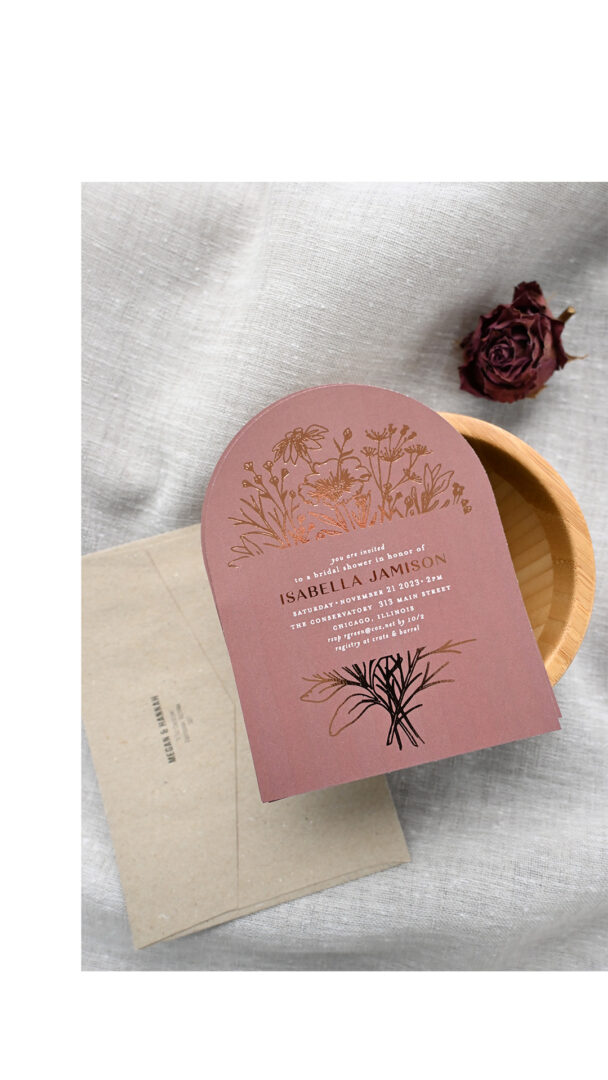
A QR code RSVP system is really three things working together: the printed code, the destination page, and the response tracking tool. Here’s how to build each one.
Step 1: Choose Your RSVP Platform
You need somewhere for guest responses to land. Options:
| Platform | Cost | Best For |
|---|---|---|
| Google Forms | Free | Simple yes/no + meal choice; no branding |
| RSVPify | Free up to 100 guests; paid for more | Branded RSVP, plus-ones, meal tracking, guest list export |
| Joy (wedding website) | Free | All-in-one: RSVP + registry + wedding website |
| Zola (wedding website) | Free | All-in-one with strong RSVP tracking and reminders |
| Typeform | Free tier available | When you want a conversational form with high-completion rates |
Step 2: Build Your RSVP Form
At minimum, collect:
- Guest name (required for seating)
- Attending yes/no
- Number of guests (if allowing plus-ones)
- Meal preference (if applicable)
- Dietary restrictions or allergies
Keep the form short. Every additional field reduces completion rates. If you need more information (shuttle preference, song requests), add it as optional fields at the end.
Step 3: Generate the QR Code Linking to Your Form
Copy the direct URL of your RSVP page. Paste it into your QR code generator. Download as SVG or high-res PNG. Hand to your designer or upload into your Paperlust order.
Step 4: Set a Clear RSVP Deadline
Print the RSVP deadline on the same card as the QR code. “Please RSVP by [date]” in plain text ensures guests who don’t scan still see the deadline. Most caterers need final numbers 2-3 weeks before the event, so set your deadline at least a week before that to leave room for follow-up.
For a full breakdown of RSVP etiquette and wording, see our companion guide: Wedding RSVP Complete Guide.
Testing Your QR Code Before Print
Testing is not optional. A non-scanning code on 150 printed invitations is an expensive problem with no fix except reprinting.
The Pre-Print Testing Checklist
| Test | How to Do It | Pass Criteria |
|---|---|---|
| Scan from three phones | iPhone, Android, and ideally an older model phone | All three scan in under 3 seconds |
| Scan from arm’s length | Hold phone at natural reading distance (12–18 inches) | Code resolves without moving closer |
| Print a test copy | Print your proof at actual size, not on-screen | Physical paper scan succeeds |
| Verify destination URL | Click the link that opens after scanning | Lands on the correct RSVP page, not a 404 |
| Test the destination on mobile | Complete the RSVP form on a phone | Form is usable, fields are visible, submit button works |
| Check URL permanence | Confirm the destination URL will not change after printing | Wedding website or form URL is locked |
If your stationery designer sends a digital proof: Print it at home at 100% scale (no “fit to page” scaling) and test the printed copy before approving. Your Paperlust designer proof arrives within 1-2 business days. Use that window to run this checklist before signing off.
What to Do If the Code Fails
If the code doesn’t scan on your proof, the most common causes are:
- Size is below 0.8 inches: request a larger version
- Contrast is too low: switch to black on white or a darker color on light paper
- Quiet zone is missing: ensure clear space around all sides
- The QR file was rasterized at low resolution: request the vector (SVG) file instead
QR Code vs. Traditional RSVP Card: Should You Do Both?
The short answer for most couples: yes, do both. Here’s why, and when it’s fine to go QR-only.
The Case for Including Both
Your guest list almost certainly includes people who won’t scan a QR code: older relatives, guests without smartphones, or guests who simply prefer writing a reply. A separate RSVP card with a stamped return envelope is a courtesy that costs $0.65 per guest in postage but prevents awkward conversations and missed responses.
A dual approach also removes every objection: guests who want to RSVP digitally can scan; guests who prefer paper can use the card. You get responses from everyone.
When QR-Only Works
QR-only is appropriate when:
- Your guest list is almost entirely under 60 and you’re confident every guest uses a smartphone
- You’re having a micro-wedding (under 30 guests) where individual follow-up is easy
- You’re sending digital save-the-dates and have already confirmed guests are comfortable with digital responses
Even in these cases, always print the wedding website URL in plain text below the QR code. “Can’t scan? Visit [yourweddingwebsite.com]” covers every scenario.
Design Tip: How to Include Both Without Clutter
The cleanest approach is a two-card suite: the formal invitation plus a separate RSVP card. The RSVP card carries both the QR code and the traditional reply fields (circle one: Accepts / Declines; Number of guests attending: ___). A guest can scan and submit digitally, or fill in the card and mail it back. Either response lands the same information with you.



Guest Etiquette for QR Code Invitations
What to Expect From Guests
Most guests in 2026 will scan a QR code without hesitation. Younger guests often prefer it. The friction points tend to be:
- Guests who don’t know how to scan: Most iPhones and Android phones scan QR codes through the built-in camera app. No separate app needed. A short note (“Open your camera app and point it at the code. No app needed.”) on the RSVP card removes this barrier.
- Guests who scan but don’t complete the form: This is the most common drop-off point. Keep the form to 4–5 fields maximum and make the RSVP button obvious on mobile.
- Guests who worry about privacy: Reassure them the code links only to your wedding website or RSVP form. No personal data is collected by the QR code itself.
What You Can Do Before Sending
- Send your RSVP deadline in a follow-up text or email 2 weeks before the deadline as a gentle reminder
- If you’re using a wedding website, enable RSVP reminder emails to non-responders through the platform
- For older guests or guests you know are less comfortable with technology, consider a personal phone call rather than relying on the QR code alone
Wording to Include on the Card
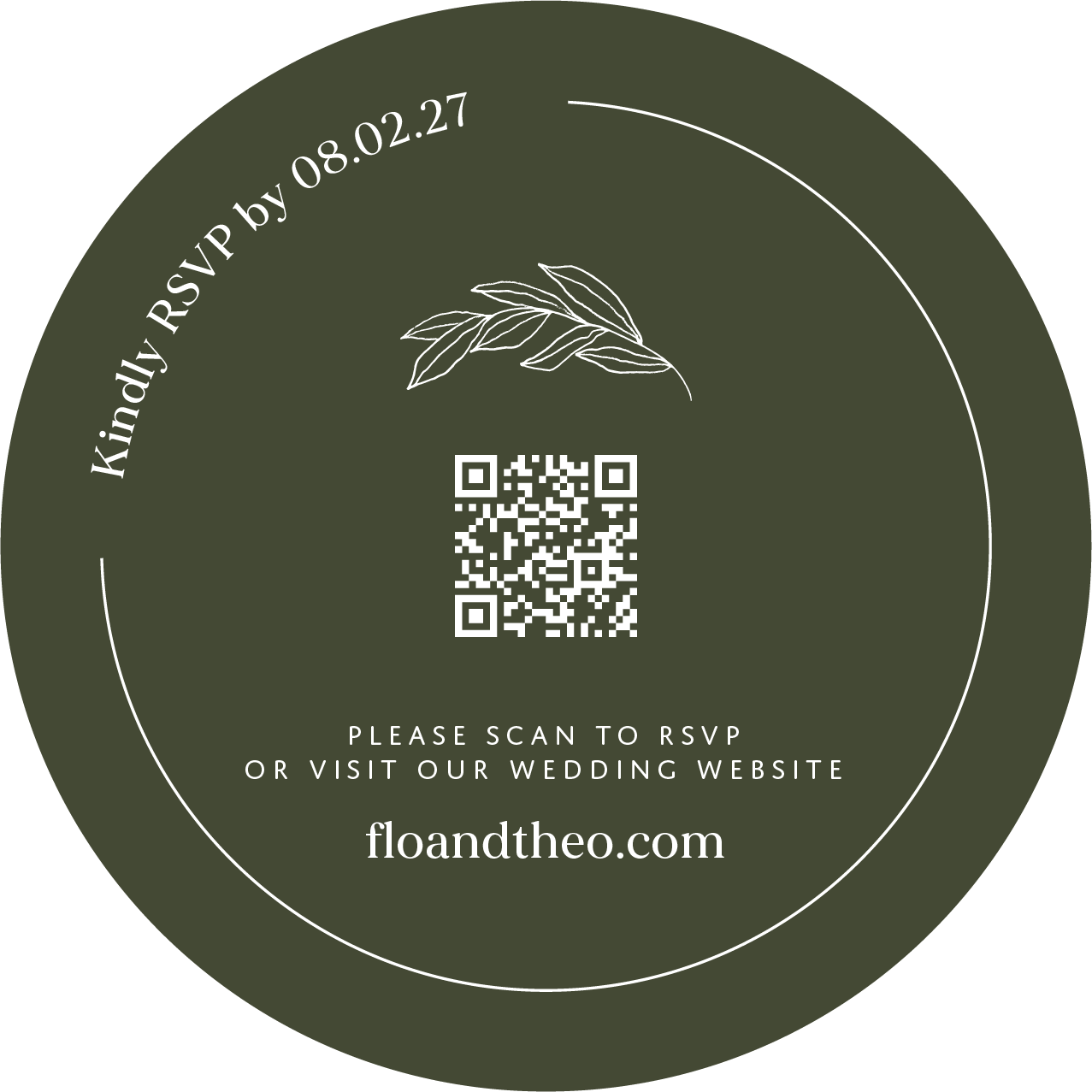
Scan to RSVP. Or visit [yourwebsite.com]
[QR Code]
Scan with your phone camera to RSVP online
Or reply at: [yourwebsite.com/rsvp]
Scan to respond | [yourwebsite.com]
Unable to scan? Please call or text [Your Name] at [Number]
QR Code Wedding Invitation FAQs
Do guests need an app to scan a QR code on a wedding invitation?
No. Modern iPhones (iOS 11 and later) and most Android phones (Android 8 and later) scan QR codes directly through the built-in camera app. The guest opens their camera, points it at the code, and a link notification appears on-screen. No additional app is required.
Can I add a QR code to any Paperlust invitation design?
Yes. Browse the QR invitation collection at Paperlust for designs specifically laid out to include the code. You can also request QR code placement on most other designs. Provide the URL when ordering and the designer team will incorporate it. A digital proof arrives within 1–2 business days for your review.
What size should a QR code be on a wedding invitation?
The minimum is 0.8 x 0.8 inches (20mm x 20mm). For a typical 5 x 7 inch invitation or 4 x 5.5 inch RSVP card, 1 inch works well. Smaller than 0.8 inches risks scan failures, especially on older phones.
What should I link the QR code to?
Your wedding website’s RSVP page is the most reliable destination. You can update venue details, menu options, or accommodation info on the site without reprinting your invitations. Alternatively, link to a standalone RSVP form (Google Forms, RSVPify, Typeform). Avoid linking to pages that might move or change URL after printing.
Is it rude to have only a QR code and no traditional RSVP card?
For most guest lists, a QR-only RSVP is considered acceptable in 2026, especially for couples with primarily younger guests. To be inclusive, always add your wedding website URL in plain text below the code so guests who can’t or won’t scan have an alternative. For guest lists with older or less tech-comfortable guests, a traditional reply card alongside the QR code is good etiquette.
What if I want to change my RSVP form URL after invitations are printed?
If you used a dynamic QR code (through a service like Bitly or Rebrandly), you can update the destination URL without reprinting. If you used a static QR code (encoding the URL directly), the destination is permanent. That is a key reason to use your own domain (yourweddingwebsite.com) rather than a platform’s direct link that could expire.
What format should I request the QR code file in for professional printing?
SVG (vector format) is ideal: it scales to any size without quality loss. If SVG isn’t available, PNG at 1000 x 1000 pixels minimum works for standard invitation sizes. Never use a screenshot of a QR code; the resolution is too low for crisp print output.
Can a QR code be printed in gold foil or other specialty finishes?
Technically yes, but avoid it. Flat foil creates a reflective surface that can interfere with phone camera reads. Letterpress with foil accents has similar concerns. Reflections and glare disrupt the contrast the camera needs to detect the code. Print the QR code in matte black on a light background, even if the rest of the design uses flat foil or metallic finishes. You can add a foil element near the code (a small decorative line or text label) while keeping the code itself in standard ink.
Ready to Design Your QR Code Wedding Invitation?
Browse 500+ designs and add your QR code link when you order. Designer proof in 1–2 business days.
Shopping from outside the US? Browse QR code wedding invitations (AU) | QR code invitations (UK) | QR invitations (CA) | QR invitations (NZ)